What's new in Riggy: two weeks of October 2026
Riggy turns your character art into a Spine 4.2 skeleton with animations through a chat. Since October 1 it learned to cut one flat picture into parts, add ready motions from a list, follow recipes for attacks and deaths, bend parts with bones and download a video or a GIF. Here is everything that shipped, grouped by what it changes for you.
One picture is enough: the cut into parts
Oct 8. You no longer need a layered PSD. Drop one PNG or JPG and say what it is; Riggy answers with a plan — the parts by name — and an estimate on the Cut button. The cut paints in the areas each part hides, a shoulder under the arm or the top of a leg under the body, so the parts overlap at the joints when they move. Then Riggy assembles the parts into a starting rig.
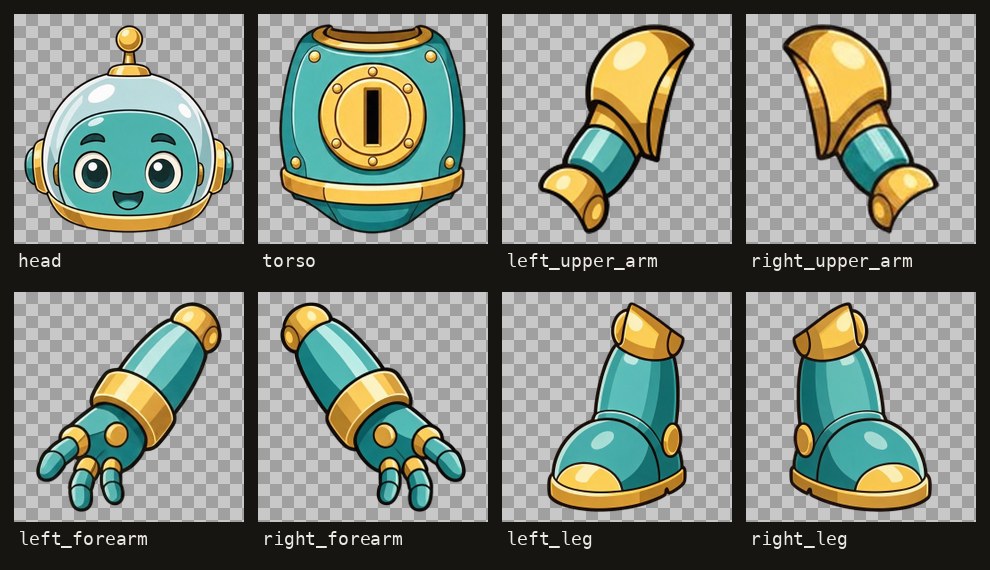
Oct 14. Fewer doubled pieces. Sometimes the same piece of the picture came back in two parts — the top of an arm in the arm and again in the torso — and when the arm swung, its copy stayed on the body. Now, when a part hangs on another one in the plan, a piece found in both stays with the hanging part (the arm) and is removed from the one it hangs on (the torso); a repeat between unrelated parts is named in the summary instead. The walkthrough with the main corrections: Turn a PNG or JPG into a Spine animation.
Ready motions from a list
Oct 12. “+ Animation” next to the animation tabs now offers two ways: describe the motion in words, or pick it from a list. You watch a template play on your own art, set its speed and strength, and press Add; it becomes an ordinary animation you can reshape with a sentence or the mouse. Previewing and adding a template runs no model and costs nothing.
- Slot symbols and props: Idle, Pop and Land. You mark what moves and what stays — a frame or a backing plate usually stays.
- Characters: Walk, Run, Jump and Punch, motion-capture clips from the CMU Graphics Lab Motion Capture Database laid onto your character's bones. They need a character drawn from the side: walk, run and jump need legs with knees and a torso, the punch needs a whole arm and a torso, and both need hips to move. Riggy guesses the role of each bone from its name, and you can assign the roles yourself. Walk and run play in place. When an arm would pass behind the head, Riggy shows the moment and offers to draw the arm in front.
The full set a game character needs, and how each action is made: game character animations for Spine.
Better motion from a sentence
- Recipes for each kind of asset (Oct 7). The AI first decides what it is animating — a humanoid, a four-legged creature, a flyer, a soft body, a bust, a slot symbol or a prop — and then follows a recipe for that type and action: an attack with a wind-up, a strike and a recovery rather than an arm swinging in a circle, a death that ends lying on the ground rather than under it.
- Only what you asked for (Oct 9). The AI is told to name extra motion instead of adding it, and to use physics — parts that swing on their own — only when you ask for it, because physics keeps playing into the next animation.
- A check before the answer (Oct 9). The AI is told to look at the key moments of the motion against the ground, the frame and the joints, and to fix what is off before it answers.
Parts that change shape and bend
Oct 4. A part can now change its shape, not only move as one stiff piece: a body that squashes and breathes, a face that smiles, a flag, hair or water that ripples. The worm above was made this way, in words: Animate a jelly worm in Spine through chat.
Oct 4. A tail, a neck, a ribbon or a soft body can also bend with a chain of bones, and the eyes and mouth on it follow the bend once they are attached to the same bones. On a computer the Bend mode of the canvas has a brush that shows and paints how much each bone moves the picture; on a phone the mode is for viewing.
Download a video or a GIF
Oct 13. One dialog now offers three formats: Spine files for your engine, an MP4 video or a GIF of one animation, played one to three times — up to 30 seconds for a video and 15 for a GIF. On a computer the Download button sits next to the player; on a phone it stays in the top bar. The clip is recorded in your browser and costs nothing; MP4 needs a browser that can encode it, and otherwise the GIF is there. A small “made with Riggy” caption in the corner is on by default; untick it if you don't want it. The Spine files are still the main result — a clip is for a trailer, a store page or a post.
What next, after the first animation
Oct 13. When a request adds an animation or a motion, a card under it suggests the next step: download it, open the tutorial for your engine, add another animation from the list or in words. A request that changed the rig can be rated with 👍 or 👎, and a 👎 can carry a few words about what went wrong.
Getting started and help
- A first-run card (Oct 5). The first project you open shows three steps — bring your art, describe the motion, adjust with the mouse. Once the art is in, ready phrases appear that one click puts in the message box for you to send or change.
- Help next to the work (Oct 5). On a computer a strip in the corner of the preview opens short help on prompts, the rig, motion, bending and every gesture; on a phone it opens from “?”. The full guide is at Help.
- Your language (Oct 4). The AI answers in the language you write in; the names in the rig stay in Latin letters, because your game code calls them.
- Undo in Russian and Chinese (Oct 4). “undo” on its own already rolled back the last change for free; now “отмени” and “撤销” do too.
Fixes you feel in the engine
- Unity loads the export (Oct 1). The official Unity runtime refused files without a skeleton hash; every export now has one. Step by step: Spine 4.2 in Unity.
- Phaser loads the atlas (Oct 1). The atlas now starts with the page name, as the official Phaser plugin expects. Tutorials for Phaser 4 and PixiJS 8.
- Pixel art stays crisp (Oct 7). Art without semi-transparent pixels and with no more than 256 colours is recognised as pixel art and gets nearest-neighbour filtering in the atlas, so it does not blur when it moves: Pixel art in Spine.
- Steadier long requests (Oct 4–6). An answer cut off before it did anything is retried once, and if your connection drops while the AI works, the chat reconnects and shows the answer from the start.
On the site
- Spine error pages (Oct 1). What the Spine runtimes mean by “Region not found in atlas” and other messages, with fixes: Spine runtime errors.
- The validator checks bending parts (Oct 4). The free Spine JSON validator now reads bone weights too.
- Pages in Chinese (Oct 6). Riggy in Chinese and articles about idle timing, a combat set and pixel art; the app itself stays in English, and you can write to the AI in Chinese.
- Examples. A combat set — idle, attack, hurt and death — on one monster: A game monster's combat set in Spine; rigs to play with and download: examples; what costs what: pricing.