From a layered PSD to an animated Spine character in Godot 4
Layered art to a character playing in a Godot 4 scene with the official spine-godot runtime: add the 4.2 extension, rename one file, make a skeleton resource, place a SpineSprite and play it from GDScript. The same cat as in the Phaser, PixiJS and Unity walk-throughs, as a Godot project with everything but the runtime: riggy-cat-godot.zip. Extract it, add the spine-godot runtime as shown below, open it in Godot and run it.
What was checked
On October 21, 2026 we ran the project from the archive in Godot 4.6.1 on macOS with the spine-godot 4.2 extension: it imported and played idle. A check scene around the same scene and script sent a left mouse click, which switched to hack, and the script received the events and the end of the one-shot. The errors in the traps below are what Godot printed when we broke that step on purpose. The inspector steps follow the spine-godot documentation; the resource file they produce is the one in the archive. A premultiplied-alpha atlas was not tried, and there is no live web demo this time.
Where the rig comes from
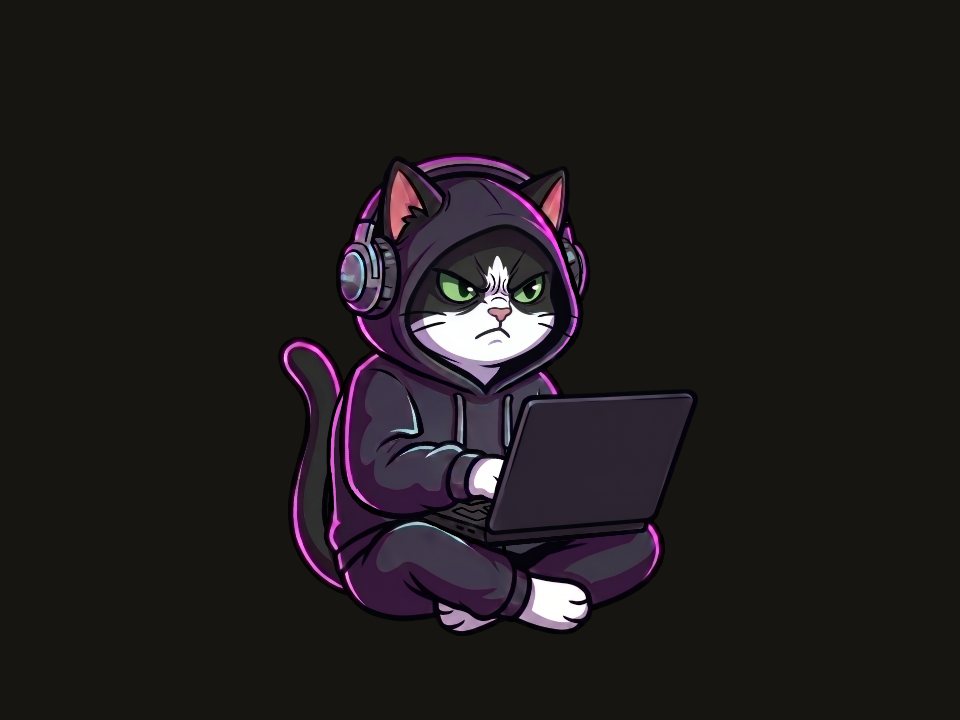
The cat was drawn as a layered PSD with 15 parts: body, head, eyes, headphones, the arm in two pieces, the laptop, the tail. The rig and its animations were made in Riggy by describing the motion in chat: 18 bones, idle (a loop, nodding to the music) and three one-shots — hack, glitch and bigwin. The export is plain Spine 4.2 data: skeleton.json, skeleton.atlas and page.png. A rig made by hand in the Spine editor goes through the same steps, as long as it is exported as Spine 4.2 JSON with its atlas and page images.
Add spine-godot 4.2 to the project
Esoteric Software ships spine-godot in two forms: a GDExtension that you drop into an existing project, and a custom Godot editor build with the runtime compiled in. The extension is enough for GDScript; C# needs the custom editor build. This guide uses the extension.
The runtime's major and minor version must match the export. These files say 4.2, and the spine-godot page links the 4.3 builds by default, so take the 4.2 build by hand. For Godot 4.6.1 it is:
https://spine-godot.s3.eu-central-1.amazonaws.com/4.2/4.6.1-stable/spine-godot-extension-4.2-4.6.1-stable.zip
For another Godot version, pick the build whose name has both 4.2 and your Godot version. Unzip it and copy the bin/ folder to the root of the project, next to project.godot.
If you took a 4.3 build, the skeleton does not import, and the log says Error importing 'res://spine/cat.spine-json'. Swap bin/ for the 4.2 build and import again.
Rename the skeleton to .spine-json
Godot treats every .json file as its own JSON resource, so spine-godot reads a JSON skeleton only with the .spine-json extension (a binary export, .skel, keeps its name). The atlas stays .atlas, and the page image goes next to it:
your-project/
  project.godot
  bin/
    spine_godot_extension.gdextension   ← from the spine-godot zip
    …
  spine/
    cat.spine-json   ← renamed from skeleton.json
    cat.atlas        ← renamed from skeleton.atlas
    page.png
If the skeleton is still .json, Godot loads it as JSON, and assigning it to the skeleton resource leaves the field empty — no error, no character on screen. The archive above already has the renamed files.
Import: once in the editor, twice from a terminal
Open the project in the Godot editor, and it imports the Spine files on the first open. On that first import the Output panel may print Can't load texture: "res:///spine/page.png" — the atlas got imported before its page image. In our run it did no harm: the scene played right after.
Importing from a terminal — on a build server, in a script — needs two passes. The first one only registers the extension and skips the Spine files:
godot --headless --path . --import   # registers the extension
godot --headless --path . --import   # imports the Spine files
Run the game after a single pass, and the log says No loader found for resource: res://spine/cat.atlas (expected type: SpineAtlasResource), then the same for the .spine-json. Run the import again.
Make the skeleton resource
spine-godot puts the skeleton and the atlas together in one resource, SpineSkeletonDataResource. In the FileSystem panel, right-click the folder with the Spine files, choose New Resource…, pick SpineSkeletonDataResource and save it as cat_data.tres. Double-click it and set Atlas Res to cat.atlas and Skeleton File Res to cat.spine-json. Default Mix crossfades every switch between animations; 0.2 seconds keeps the cat from snapping from one pose to the next. The saved file is short:
[gd_resource type="SpineSkeletonDataResource" format=3]

[ext_resource type="SpineAtlasResource" path="res://spine/cat.atlas" id="1"]
[ext_resource type="SpineSkeletonFileResource" path="res://spine/cat.spine-json" id="2"]

[resource]
atlas_res = ExtResource("1")
skeleton_file_res = ExtResource("2")
default_mix = 0.2
The same resource can be built in code, inside a node's _ready(). These lines load it and add a SpineSprite; set its position, scale and script as in the next steps:
	var data := SpineSkeletonDataResource.new()
	data.skeleton_file_res = load("res://spine/cat.spine-json")
	data.atlas_res = load("res://spine/cat.atlas")
	data.default_mix = 0.2
	var cat := SpineSprite.new()
	cat.skeleton_data_res = data
	add_child(cat)
Place a SpineSprite
In the Scene panel, press +, add a SpineSprite node and drop cat_data.tres into its Skeleton Data Res field. The node's position is where the root bone stands — for this rig, the bottom center. The rig is 895×1194 in Spine units, so in a 960×720 window it needs a scale:
[node name="Cat" type="SpineSprite" parent="."]
position = Vector2(480, 690)
scale = Vector2(0.5, 0.5)
Play animations from GDScript
Attach a script to the SpineSprite. It starts the loop, and on a left click plays the next animation. The two handlers it connects are in the next section and go in the same file — together they are cat.gd from the archive:
extends SpineSprite

const ANIMATIONS := ["idle", "hack", "glitch", "bigwin"]
var next := 1


func _ready():
	animation_event.connect(_on_animation_event)
	animation_completed.connect(_on_animation_completed)
	get_animation_state().set_animation("idle", true, 0)


func _unhandled_input(event):
	if event is InputEventMouseButton and event.pressed and event.button_index == MOUSE_BUTTON_LEFT:
		play_next()


func play_next():
	var anim: String = ANIMATIONS[next]
	next = (next + 1) % ANIMATIONS.size()
	var state := get_animation_state()
	if anim == "idle":
		state.set_animation("idle", true, 0)
	else:
		# play the one-shot once, then go back to the idle loop
		state.set_animation(anim, false, 0)
		state.add_animation("idle", 0, true, 0)
get_animation_state() is the same AnimationState as in every Spine runtime, but the track index comes last: set_animation(name, loop, track) and add_animation(name, delay, loop, track). A one-shot is set without loop, and idle is queued right behind it on the same track. With delay 0, idle starts mixing in 0.2 seconds (the default mix) before the one-shot ends, so the switch has no gap.
Events and the end of a one-shot
SpineSprite reports what happens in the animation with signals. animation_event brings the events keyed in the rig — this one has beat on every nod of idle and impact when the paw hits the keys. animation_completed fires when a one-shot ends, and also on every loop of idle; the handler prints the animation name, so compare it before reacting to the end of a one-shot:
func _on_animation_event(_sprite, _state, _entry, event):
	# "beat" on every nod of idle, "impact" when the paw hits the keys in hack
	print("event ", event.get_data().get_event_name())


func _on_animation_completed(_sprite, _state, entry):
	# fires when a one-shot ends and on every loop of idle
	print("completed ", entry.get_animation().get_name())
Everything the script printed in our run, with one click a second in:
event beat
event beat
event impact
event beat
completed hack
event beat
The beat right before completed hack is the start of idle, mixing in while hack is still finishing.
Straight alpha only
spine-godot does not support atlases exported with premultiplied alpha. Export with straight alpha — Riggy's export is straight alpha, which is why the frame above has clean edges. If you export from the Spine editor, leave Premultiply alpha off in the texture packer settings.
When it does not load
Error importing 'res://spine/cat.spine-json'.— we got it with a 4.3 extension and a 4.2 export; check that the versions match first.No loader found for resource: …— the files were imported from a terminal only once; import again.- The skeleton field stays empty and nothing is drawn, without an error — check whether the file still ends in
.json; rename it to.spine-json. - Fringes around parts — check the atlas export settings: spine-godot needs straight alpha.
- Check the JSON itself with the Spine JSON validator; errors from the other Spine runtimes are in Spine runtime errors, explained.
Licensing
spine-godot is part of the Spine Runtimes. Shipping a game with them requires a Spine license from Esoteric Software, whoever made the skeleton — see the licensing page. Riggy is an independent tool, not affiliated with Esoteric Software or Godot.